 Podcast Clip Kit
Spotify Podcast Clips: Listener Sharing vs. Creator Uploads
A real Good Hang demonstration shows why the deliverable matters before you start clipping.
Before making a Spotify podcast clip, decide what you want to finish with. You might want to save a moment from a show you enjoy, publish a promotional video beside your own episode, or turn your recording into shorts for another channel. Those tasks begin with different material and need different checks.
Spotify’s May 2026 launch demonstration makes the distinction tangible. It uses the Steve Carell episode of Good Hang with Amy Poehler to illustrate a listener selecting a moment. We can compare that visible example with Spotify’s creator-upload guidance, then build a clearer brief for our own podcast clips.
A real example: selecting a Good Hang moment
The Ringer’s original episode page dates the conversation to March 24, 2026. Spotify later used the programme in its May 27 listener-clips announcement, which describes saving and sharing selected podcast moments on mobile.
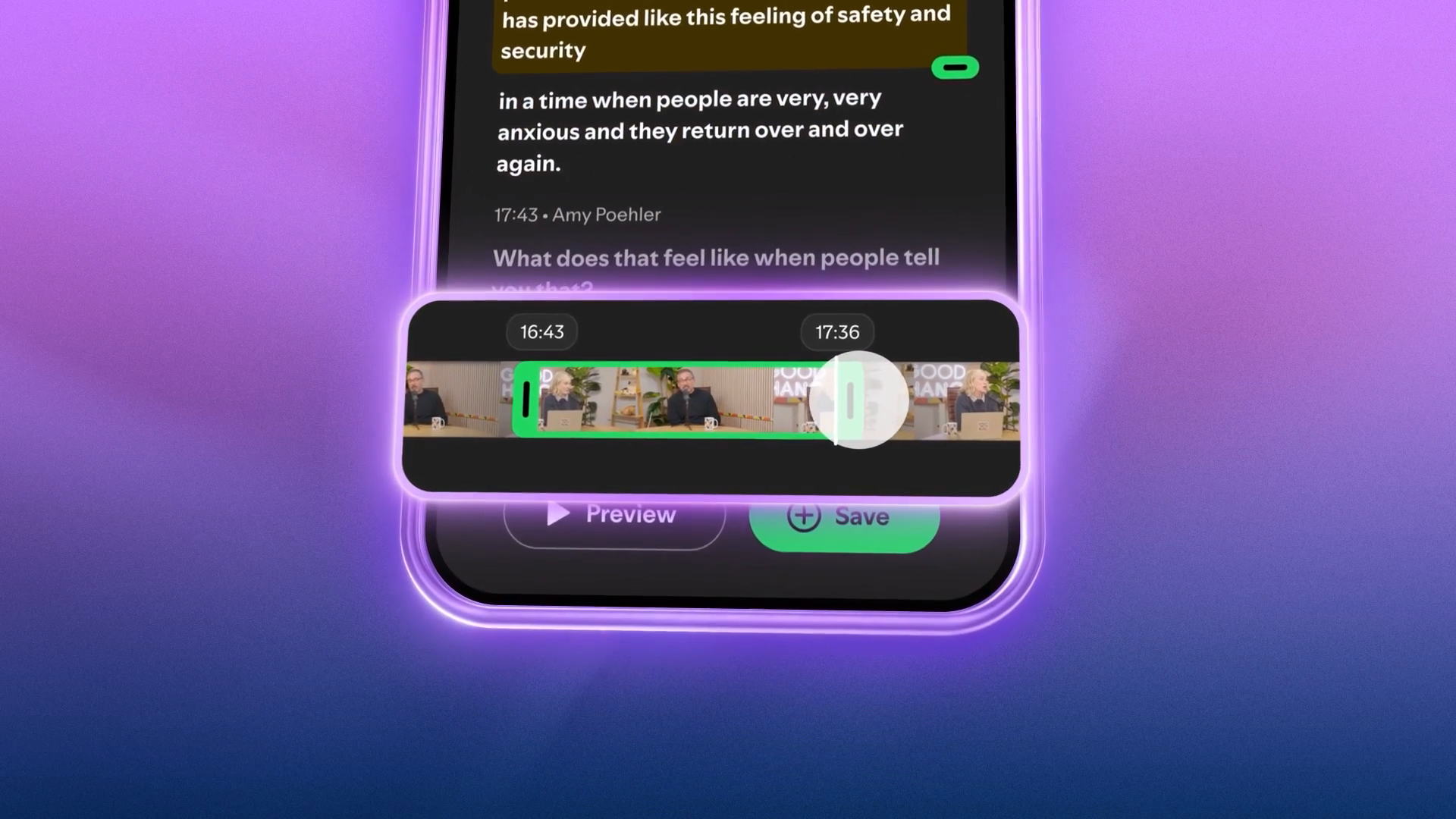
At 00:12 in the official launch demonstration, a selection strip appears beneath the transcript, with Preview and Save controls below it. The frame shows an interface for choosing a passage from an episode already being played.
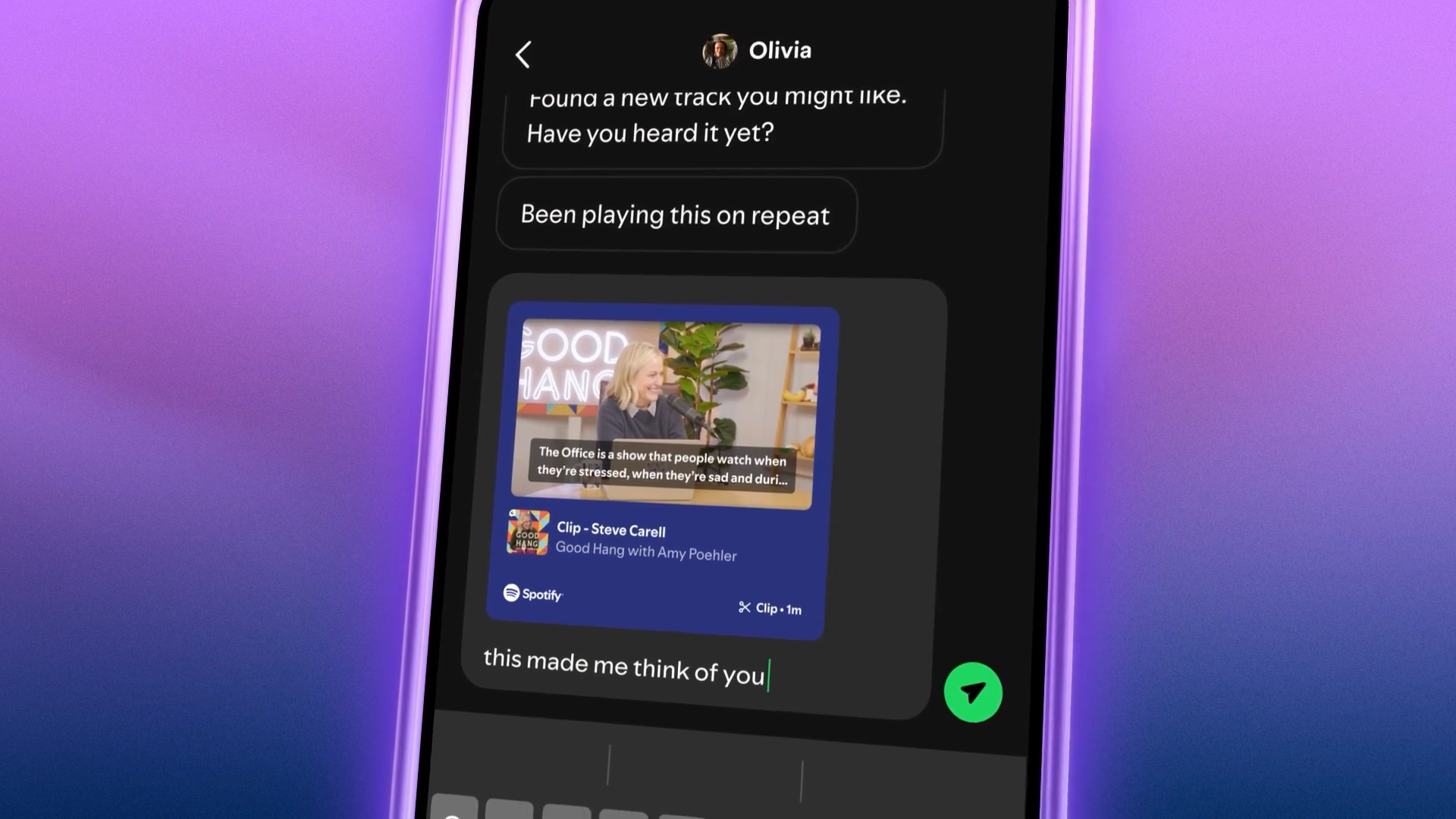
At 00:21, the demonstration shows a clip card in a message composer. The card retains the episode and show identity. This is a useful visual example of a listener preparing to share a selected moment.
Creator-uploaded Clips start with a video file
Spotify’s creator Clips guide describes uploading a promotional video to an episode. Its listed file requirements are 15–90 seconds, MP4 or MOV, audio included, and no more than 1GB. It allows one uploaded Clip per episode. These requirements belong to the creator-upload workflow.
For that task, your work starts before the upload: choose the passage, check its meaning, prepare the finished video, and decide which episode it should promote. A listener’s saved moment may be useful inspiration, but you still need an editorial brief for the version you plan to publish.
Choose the workflow by the deliverable
Use the following comparison when a teammate asks for “a clip.” Naming the deliverable prevents one person from preparing a share card while another expects an editable or uploadable video.
| Your task | Starting point | Completion check |
|---|---|---|
| Keep or share a moment while listening | An episode available in your listening app | Check the selected passage and the saved or shared result |
| Add a promotional Clip to your Spotify episode | A prepared video file and the intended episode | Check file requirements, episode association and public presentation |
| Turn your podcast into shorts for another channel | Your source recording and an editing brief | Review the export and the destination’s upload requirements |
The first two routes are illustrated or documented by Spotify. The third is an editing task: you need a finished asset that suits where you intend to publish it. Decide that destination before you spend time refining captions or framing.
Write a brief that survives the handoff
Our suggested brief has five fields. Source: identify the exact recording or episode. Purpose: save a reference, answer a question, or invite someone to a fuller conversation. Audience: name what viewers already know. Deliverable: specify a shared moment or a finished video. Destination: state where it should appear.
Then add a one-sentence test: “After watching, someone should understand…” If that sentence depends on background missing from the selected passage, review the surrounding conversation. A recognizable guest does not remove the need for context. Our podcast clip selection guide covers that review in more detail.
For a team, assign one person to check the destination as well as the edit. A video can look finished locally while pointing to the wrong episode after publication. Record the final URL alongside the source recording and the title so the next person can verify the same item.
Keep the requirements attached to the right task
Do not apply the creator-upload duration limit to a listener’s saved selection just because both are called clips. Likewise, a message card is not a specification for an exported video file. Before promising a particular output to a colleague, check the actual result in the workflow you are using.
For creator uploads, Spotify’s guide places Clip reporting in its analytics interface. Keep that reporting tied to the uploaded Clip. If you are reviewing other sharing activity, record what you can actually observe instead of assigning it the same measurement definition. Our podcast clip analytics guide helps separate attention from subsequent episode activity.
Bring your own recording into a podcast clip maker
If the brief calls for finished short videos from your recording, start with Podcast Clip Kit. Review each candidate against your intended question, check the captions and ending, and prepare the version for its destination. An AI podcast clip generator fits into that production workflow; your brief determines which candidate is useful.
The practical lesson from the Good Hang example is to name the job first. Saving a memorable exchange, sharing it with a friend, and producing a promotional short can all begin with an interesting moment. A clear deliverable tells you what to check before calling the work complete.