 Podcast Clip Kit
How to Evaluate Auto Reframing for Podcast Clips
Compare time to a reviewed export, with real editing experiences and a worksheet for your own footage.
Samir Chaudry went to a comedian friend’s house to teach him how to edit clips. What started as a lesson in manual keyframing became a question about whether they were doing work a tool could handle. In the July 15, 2025 Creator Science interview, Samir describes opening Premiere, bringing in footage, and adjusting the frame as his friend moved. Then they tried CapCut. He recalls an hour spent on one clip versus roughly three minutes with the other approach. The publisher’s transcript places the story at 52:55–54:19. Read the original interview.
For anyone turning a podcast to shorts, that experience raises a practical question: how should you compare the work involved? Our recommendation is to measure the time to a reviewed, usable export. Define that finish line before trying an AI podcast clip generator or changing your editing workflow.
Separate the lesson from the comparison
Samir was teaching a friend while editing. That matters when interpreting his recollection: a lesson includes explanation and discovery as well as producing the clip. Use the story as a reason to examine your own workflow. To make a purchasing or production decision, record your own results with the same footage and the same definition of done.
Start with a short selection from a recording you own. Write down the source file, start and end points, target format, and required text. Keep those choices fixed across both attempts. If one attempt includes finding the highlight and the other starts with a selected range, record those stages separately. Otherwise, you are answering two different questions with one timer.
Compare workflows available today
Premiere itself offers automatic reframing. Adobe’s current instructions describe creating a duplicate sequence, choosing an aspect ratio, and selecting a motion-tracking preset. They identify Slower Motion as suitable for relatively static talking-head interviews and note that complex movement or multiple points of interest may require keyframe adjustments. Adobe’s Auto Reframe instructions.
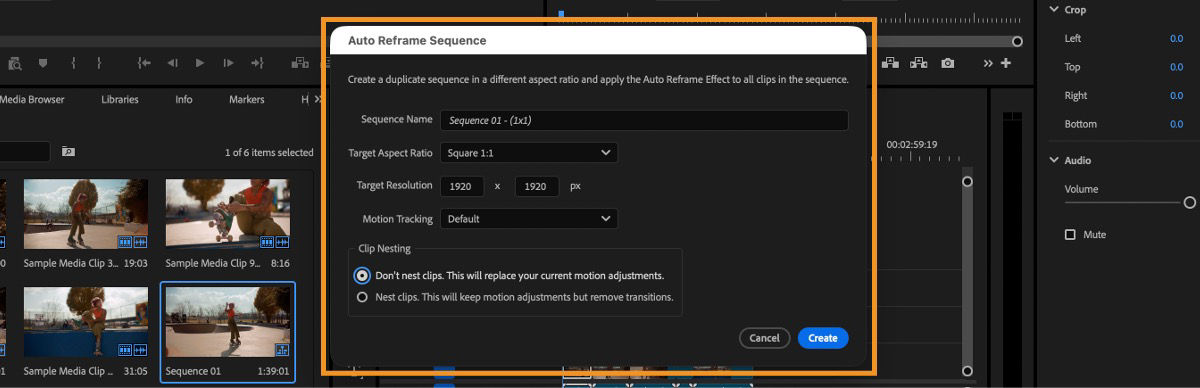
Write down the application version and settings beside each result. Compare a manual workflow with the automatic workflow you would realistically use. Include a practice attempt if you are learning either tool, then keep practice time separate from subsequent production attempts. This gives you two useful answers: the effort to get started and the effort to repeat the job.
A finished crop still needs a text check
Ashley Schroeder documented a concrete snag in Colorado State University’s March 27, 2020 account of trying Auto Reframe. Her approximately 30-second video tracked without major issues, but its text overlays did not adjust. She traced that problem to text made with Legacy Title and reported success after recreating it through the graphics panel. Read CSU’s firsthand account.
That historical example is useful for designing a review: the picture and the text can require separate work. For current Premiere controls, follow current documentation rather than the 2020 menu paths. In your own comparison, treat unreadable text as unfinished work even when the person stays comfortably in frame.
A comparison sheet for your next podcast clip
Use this worksheet for a manual edit and an automatic edit of the same selected range. Leave measurements blank until you run the attempts. The checklist is our suggested evaluation method.
| Record | What to write down | Why it belongs in the comparison |
|---|---|---|
| Input | Source filename and exact start/end points | Both attempts process the same material. |
| Deliverable | Aspect ratio, resolution, captions, names, and required graphics | Both attempts aim for the same finished asset. |
| Active work | Setup, adjustments, text corrections, and review time | This is time someone must spend on the task. |
| Waiting | Upload, analysis, rendering, and download time | A short editing session can still have a long turnaround. |
| Corrections | Each issue, its timecode, and the change made | The record shows where repeat work happens. |
| Acceptance | Pass or revise after watching the exported file | A preview alone does not close the task. |
Review every speaker change and any moment where a gesture, object, or reaction is essential to the selected story. Check names, caption readability, and whether the opening still makes sense without the surrounding episode. Watch the whole exported clip once at its intended viewing size. Record a specific correction such as “restore the second speaker at this timecode” rather than a general impression that one version looks better.
Choose the workflow you can repeat
After the first comparison, try another selection with different demands: for example, a quiet single-speaker answer and a conversation with more movement. Keep the results separate. A workflow that is convenient for one type of recording may require more correction on another. Your decision should reflect the footage you expect to publish regularly.
Choose a podcast clip maker by looking at the reviewed output, active work, waiting, and recurring corrections together. If your bottleneck is choosing the moment, use our guide to choosing podcast clips before comparing framing workflows. Once a clip is ready, the podcast clip title guide helps you package that specific moment.
Start with your own recording in Podcast Clip Kit, then use this sheet to review the clips you prepare. Keep a short correction log across your next few exports. That log gives you concrete evidence for deciding which parts of your podcast-to-shorts workflow need attention.